
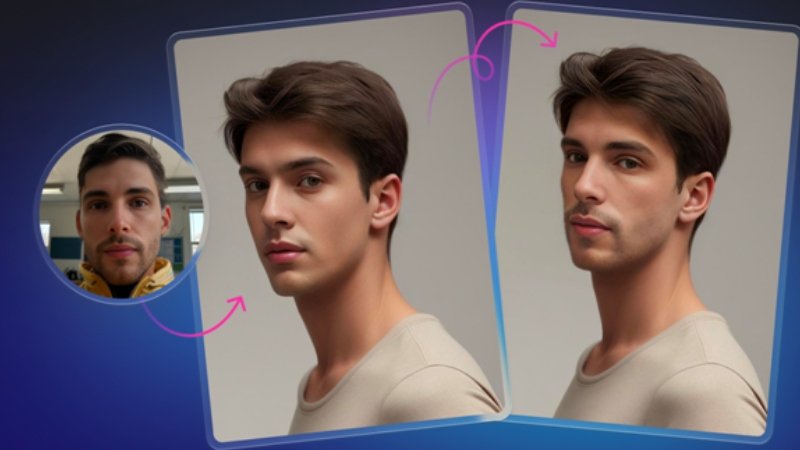
Synthetic media discussions usually get stuck on deepfakes or entertainment. But for designers, content managers, and marketers, face swapping has moved past the novelty phase. It is now a functional asset for static imagery.
The real challenge isn’t capability anymore. Its implementation. How do you use Face Swapper responsibly in real workflows without wrecking quality?
Icons8 positions its tool as a utility, not a toy. It integrates with resolution upscalers and background removers. After testing the tool across various projects, the difference between a “gimmick” and a legitimate tool comes down to one thing: how you handle the source material and output resolution.
The Mechanics of Generative Swapping
Early tools simply cut and pasted a face from Source A to Target B. Modern tools don’t do that. They use a generative approach.
Upload a photo, and the AI maps the facial landmarks and lighting. It doesn’t strictly copy the source face. Instead, it builds a new face that sits “in between” the source and the target.
This matters for realism. The output keeps the original lighting, skin texture, and angle of the body but adopts the key identifiers of the new face. This generative process helps the swap survive scrutiny at higher resolutions, specifically up to 1024px, which is a key differentiator here.
Scenario 1: Localization and Demographic Adjustment
Global marketing often hits a wall with asset diversity. You might license a stock photo with perfect composition and wardrobe, but the model doesn’t fit the demographic for a specific region.
In the past, a retoucher would spend hours masking, color-grading, and warping a new face to match the lighting direction.
Face Swapper changes the workflow:
- Selection: Pick the high-quality stock photo (the “body” source).
- Sourcing: Grab a face from the built-in gallery or upload a custom portrait fitting the regional demographic.
- Processing: The tool swaps the face. It preserves the original image’s lighting and grain.
- Refinement: Since the output holds the 1024px resolution, run it through the Smart Upscaler if you need print quality.
Now, a single high-value asset covers multiple markets. No reshoots. No extensive manual compositing.
Scenario 2: Anonymizing Sensitive Subjects
Editorial work often faces a privacy problem.
Say a non-profit publishes a report on a sensitive topic, like whistleblower protection or medical recovery. They have authentic photos that convey the right emotion. But revealing the subjects’ identities puts them at risk.
Blurring faces or adding black bars dehumanizes the subject. It ruins the emotional impact.
Here, the “identity protection” use case becomes critical. The production team uploads the sensitive photo and swaps the face with a nonexistent, AI-generated person. The result preserves the human element-the smile, the gaze, the posture-but the biometric identity vanishes. The documentation suggests this makes the online identity unrecognizable. Organizations can publish impactful imagery without compromising safety.
A Tuesday Afternoon in Production
Let’s look at a typical usage session to find the friction points.
A content manager needs to finalize a “Meet the Team” page for a startup pitch deck. The group photo is okay, but the CEO hates how they look, and the CTO is blinking. There is no time for a reshoot.
The manager opens the browser. They drop the group photo (a 4MB PNG) into the upload zone. The interface detects multiple faces automatically. That’s the multiswap feature working.
For the blinking CTO, the manager uploads a separate headshot where the eyes are open. They drag that face onto the blinking face in the group shot. For the CEO, they use a better solo portrait from the same day.
While processing, the manager watches the faceswapper ai engine handle the swap. A few moments later, the result pops up. The CTO’s eyes are fixed. But the glasses on the CEO look slightly warped because the angle was tricky.
The manager runs the swap again, this time choosing a source photo with a similar head tilt. The second attempt aligns better.
One last detail: the skin tones look harsh on the intern in the back. The manager uses a lesser-known trick. They upload the group photo as both the source and the target. This triggers the “skin beautifier” effect, smoothing out texture without changing features. They download the final result, clear the history for privacy, and drop the file into the deck.
Comparing the Alternatives
You have to measure this tool against the competition.
Face Swapper vs. Adobe Photoshop
Photoshop offers total control. If you need to manually paint in hair strands or adjust subsurface scattering, use Photoshop. But a realistic face swap there takes a skilled retoucher 30 to 60 minutes. Face Swapper does this in seconds. For volume work or mockups, the AI wins on efficiency.
Face Swapper vs. Mobile Apps (Reface/FaceApp)
Mobile apps are built for phones. They compress images until they look pixelated on a desktop. Icons8 focuses on preserving the input size and quality, supporting up to 1024x1024px for the face area. It works for web design and slide decks. Mobile app exports usually look muddy in professional contexts.
Limitations and When This Tool is Not the Best Choice
Generative AI has hard boundaries. Practical testing reveals specific scenarios where the tool struggles.
- Obstructions: The AI doesn’t understand physical objects well. If a subject rests their chin on a hand, holds a microphone, or wears a heavy mask, the swap often creates a “melting” effect. The hand blends into the jawline.
- Extreme Angles: Front-facing portraits work well. Profiles do not. The documentation notes that 3/4 head positions or extreme profiles are challenging. The generative fill might misalign the nose or eyes if the perspective is too dramatic.
- Batch Performance: You can process batches without upload limits. But performance degrades with very large queues. For enterprise-level batching (thousands of images), use the API rather than the browser interface.
Practical Tips for Quality Results
Treat the engine like a photographic tool, not a magic wand.
- Match the Grain: Don’t swap a hyper-clean, studio-lit 4K face into a grainy vintage photo. The mismatch screams “fake.” Match the relative quality of the source and the target.
- The “Beautifier” Hack: As mentioned in the narrative, if you don’t want to change a face but just want to improve skin quality, swap the photo with itself. The AI rebuilds the face with smoother textures while keeping the identity identical.
- Watch the File Size: The limit is 5 MB. Compress raw DSLR exports to JPG or WEBP before uploading.
- Leverage the History: Paid plans offer 30-day storage. It helps if you accidentally close a tab. But for privacy, manually clear sensitive images immediately after downloading.
Managing Quality and Ethics
Instant face swapping brings us back to the central question of responsibility. The tool creates “in-between” faces that resemble the source but fit the target naturally. This makes it powerful for creative adjustment, but it requires user discretion.
Whether correcting a family photo, anonymizing a safety subject, or localizing marketing assets, the goal is enhancement. Do not deceive the viewer maliciously. Understand the resolution capabilities. Watch out for obstruction limitations. Do that, and Face Swapper becomes a solid, rapid prototyping and editing solution. At Disquantified.com, we believe that true creativity starts with the heart, and when shared with purpose, it can leave a lasting mark.